Using the CygNet ELF Trend Grid Control
The CygNet ELF Trend Grid Control has numerous Run mode options. In fact, a user can completely reconstruct the trend by changing the time window, changing the target facility, adding/deleting series, editing values, colors, fonts, etc. The context menu contains the following Run mode options.
Run Mode Options
- Changing the Time Window
- Changing the Target Facility
- Modifying the Series Configuration
- Displaying Point Values
- Editing Point Values
- Zooming In and Out
Changing the Time Window
Right-click anywhere in the trend or table and select Time Window to change the time window for the data. Options are Fixed Time or Dynamic Time.
Changing the Target Facility
Right-click anywhere in the trend or table and select Target Facility to change the target facility for the data.
Modifying the Series Configuration
Right-click anywhere in the trend or table and select Series Configuration to reconfigure series data. See Configuring Trend Series for more information.
Displaying Point Values
When you hover over a point on a trend, the cursor changes to a hand and the point’s value and timestamp is shown in a tooltip pop-up.
Editing Point Values
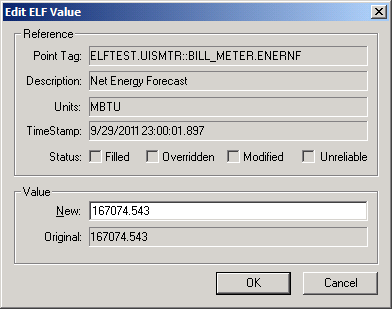
Select a point on the trend you want to change and right-click and select Edit Value on the context menu. The Edit ELF Value dialog box gives some reference information about the value, including its Point Tag, Description, Units, TimeStamp, and whether the value was Filled, Overridden, Modified, or Unreliable. See Configuring Data Filling Rules, Configuring Data Validation Rules, and Configuring Value Adjustment for more information.
Type a New value and click OK.
|
Edit ELF Value |
Zooming In and Out
By clicking and dragging, you can zoom into a particular section of the trend. You can repeat this process as necessary. You cannot incrementally zoom out. To return the trend to 100% right-click and select Undo Zoom on the context menu.


